
| 일 | 월 | 화 | 수 | 목 | 금 | 토 |
|---|---|---|---|---|---|---|
| 1 | 2 | 3 | 4 | 5 | 6 | |
| 7 | 8 | 9 | 10 | 11 | 12 | 13 |
| 14 | 15 | 16 | 17 | 18 | 19 | 20 |
| 21 | 22 | 23 | 24 | 25 | 26 | 27 |
| 28 | 29 | 30 | 31 |
- CSS 정리
- background-size 속성
- 정수 연산
- 강아지 출력
- 변수사용범위
- 위치속성
- 데이터베이스
- 백준 문제풀기
- 박스 모델의 성격
- background-repeat 속성
- 대입연산자
- java
- CSS
- oracle
- 실수 타입
- 자바
- CSS 박스모델 구성
- 연산자
- 콘솔로 변수값 출력
- 논리부정
- 고양이 출력
- 새싹 출력
- 이클립스
- 키보드입력데이터
- 부호/증감 연산자
- 연산의 방향
- ul 태그
- 논리연산자
- 삼항연산자
- HTML
- Today
- Total
너와 나의 개발 고리
[CSS] CSS 가상 클래스 선택자 사용 본문
가상 클래스 선택자는 요소의 상태를 이용해 선택자를 지정하는 방법이다
형식)
	기준 요소 : 가상 클래스 선택자 {/* CSS 코드 */}
가상 클래스 선택자가 매우 많지만 여기서는 자주 사용하는 가상 클래스 선택자 몇가지를 카테고리별로 정리하려고 한다
1. 링크 가상 클래스 선택자
a 태그에서 발생할 수 있는 링크 상태를 이용해 선택하는 방법이다
| 종류 | 설명 |
| : l i n k | 한 번도 방문하지 않은 링크일 때 선택한다. |
| : v i s i t e d | 한 번이라도 방문한 적이 있는 링크일 때 선택한다. |
아래의 예시를 보면 이해하기 쉽다
<!DOCTYPE html>
<html lang="ko">
  <head>
    <meta charset="UTF-8" />
    <meta http-equiv="X-UA-Compatible" content="IE=edge" />
    <meta name="viewport" content="width=device-width, initial-scale=1.0" />
    <title>링크 가상 클래스</title>
    <style>
      a:link { /* 한 번도 방문한 적이 없는 링크 */
        color:orange;
      }
      a:visited { /* 한 번이라도 방문한 적이 있는 링크 */
        color:green;
      }
    </style>
  </head>
  <body>
    <a href="https://www.naver.com">네이버</a>
    <a href="https://www.google.com">구글</a>
  </body>
</html>
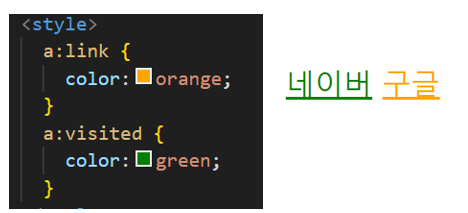
코드를 실행하면 아래와 같은 결과를 볼 수 있다
2. 동적 가상 클래스 선택자
사용자의 어떤 행동에 따라 동적으로 변하는 상태를 이용해 선택자를 지정하는 방법이다.
대표적으로 두가지의 동적 상태가 있다
| 종류 | 설명 |
| : h o v e r | 요소에 마우스를 올리면 해당 태그가 선택자로 지정된다 |
| : a c t i v e | 요소를 마우스로 클릭하고 있는 동안 태그가 선택자로 지정된다 |
예시를 통해 보면
<!DOCTYPE html>
<html lang="ko">
<head>
  <meta charset="UTF-8">
  <meta http-equiv="X-UA-Compatible" content="IE=edge">
  <meta name="viewport" content="width=device-width, initial-scale=1.0">
  <title>:hover</title>
  <style>
    p:hover{
      color:red;
    }
  </style>
</head>
<body>
  <p>hover</p>
</body>
</html>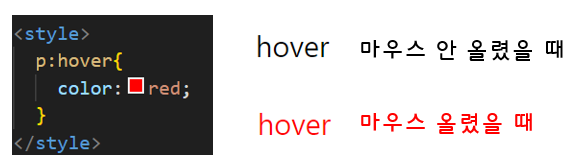
: hover 선택자를 사용하면 요소에 마우스를 올렸을때 해당 요소가 선택자로 지정되는걸 볼 수있다
: active 선택자는 태그를 마우스로 클릭하면 해당 태그가 선택자로 지정된다.
<!DOCTYPE html>
<html lang="ko">
<head>
  <meta charset="UTF-8">
  <meta http-equiv="X-UA-Compatible" content="IE=edge">
  <meta name="viewport" content="width=device-width, initial-scale=1.0">
  <title>:active</title>
  <style>
    button:active{
      color:red;
    }
  </style>
</head>
<body>
  <button>active</button>
</body>
</html>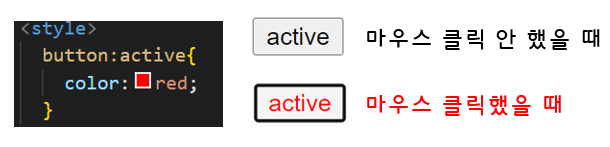
실행 결과를 보면 button 태그를 클릭할때마다 button 태그의 텍스트 색상에 빨간색이 적용되는 걸 볼 수 있다.
3. 입력 요소 가상 클래스 선택자
입력 요소의 특정 상태를 이용해 선택자로 지정하는 방법으로 여러 종류가 있지만 자주 사용하는 4가지를 정리해보려고 한다.
| 종류 | 설명 |
| : f o c u s | 입력 요소에 커서가 활성화되면 선택자로 지정한다. |
| : c h e c k e d | 체크박스가 표시되어 있으면 선택자로 지정한다. |
| : d i s a b l e d | 상호작용 요소가 비활성화되면(ddisabled 속성이 사용되면) 선택자로 지정한다. |
| : e n a b l e d | 상호작용 요소가 활성화되면(disabled 속성이 사용되지 않은 상태면) 선택자로 지정한다. |
- :focus
입력 요소에 커서가 활성화되면 스타일을 적용한다.
<!DOCTYPE html>
<html lang="ko">
<head>
  <meta charset="UTF-8">
  <meta http-equiv="X-UA-Compatible" content="IE=edge">
  <meta name="viewport" content="width=device-width, initial-scale=1.0">
  <title>:focus</title>
  <style>
    input:focus{
      color:red;
    }
  </style>
</head>
<body>
  <input type="text">
</body>
</html>
위의 코드를 실행하면 아래와 같은 결과를 볼 수 있다

- :checked
체크박스가 표시되어있으면 스타일을 적용한다.
<!DOCTYPE html>
<html lang="en">
<head>
  <meta charset="UTF-8">
  <meta http-equiv="X-UA-Compatible" content="IE=edge">
  <meta name="viewport" content="width=device-width, initial-scale=1.0">
  <title>:checked</title>
  <style>
    input:checked + label{
      color:red;
    }
  </style>
</head>
<body>
  <input type="checkbox" id="userid">
  <label for="userid">아이디</label>
</body>
</html>
체크박스가 선택되어있으면 인접한 형제 요소인 label 태그의 텍스트에 빨간색 스타일을 적용한 모습을 볼 수 있다.
- :disabled
상호작용 요소가 비활성화 되어있으면 스타일을 적용한다.
<!DOCTYPE html>
<html lang="ko">
  <head>
    <meta charset="UTF-8" />
    <meta http-equiv="X-UA-Compatible" content="IE=edge" />
    <meta name="viewport" content="width=device-width, initial-scale=1.0" />
    <title>:disabled</title>
    <style>
      input:disabled,
      button:disabled {
        background-color: #ccc;
      }
    </style>
  </head>
  <body>
    <input type="text" disabled />
    <button disabled>버튼</button>
  </body>
</html>
입력 요소에 disabled 속성이 있어 입력 요소의 배경색에 회색을 적용한다.
- :enabled
disabled 선택자와 반대로 상호작용 요소가 활성화 되어있으면 스타일을 적용한다.
<!DOCTYPE html>
<html lang="en">
  <head>
    <meta charset="UTF-8" />
    <meta http-equiv="X-UA-Compatible" content="IE=edge" />
    <meta name="viewport" content="width=device-width, initial-scale=1.0" />
    <title>::enabled</title>
    <style>
      input:enabled,
      button:enabled {
        background-color:#ccc;
      }
    </style>
  </head>
  <body>
    <input type="text">
    <button>버튼</button>
  </body>
</html>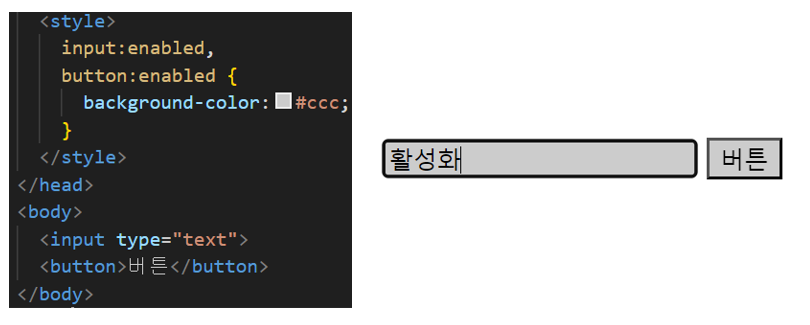
disabled 속성이 사용되지 않은 상호작용 요소를 선택해서 스타일을 변경한다.
4. 구조적 가상 클래스 선택자
HTML 태그의 사용 위치, 다른 태그와의 관계에 따라 요소를 선택하는 방법이다.
| 종류 | 설명 |
| E : f i r s t - c h i l d | E 요소의 첫 번째 자식 요소를 선택자로 지정한다. |
| E : l a s t - c h i l d | E 요소의 마지막 자식 요소를 선택자로 지정한다. |
| E : n t h - c h i l d ( n ) | E 요소가 부모 요소의 자식 요소 중 n 번째 순서가 맞으면 선택한다. |
| E : n t h - l a s t - c h i l d ( n ) | E 요소가 부모 요소의 자식 요소 중 마지막에서 n 번째 순서가 맞으면 선택한다. |
| E : n t h - o f - t y p e ( n ) | 부모 요소의 자식 요소 중 n 번 째로 등장하는 E 요소를 선택한다. |
| E : n t h - l a s t - o f - t y p e ( n ) | 부모 요소의 자식 요소 중 마지막에서 n 번째로 등장하는 E 요소를 선택한다. |
| E : f i r s t - o f - t y p e | 부모 요소의 자식 요소 중 첫번째로 등장하는 E 요소를 선택한다. |
| E : l a s t - o f - t y p e | 부모 요소의 자식 요소 중 마지막으로 등장하는 E 요소를 선택한다 |
- :first-child와 :last-child
:first-child 선택자는 부모인 E 요소의 첫 번째 자식 요소를 선택하고, :last-child 선택자는 마지막 자식 요소를 선택한다.
<!DOCTYPE html>
<html lang="ko">
<head>
  <meta charset="UTF-8">
  <meta http-equiv="X-UA-Compatible" content="IE=edge">
  <meta name="viewport" content="width=device-width, initial-scale=1.0">
  <title>:first-child, :last-child</title>
  <style>
    li:first-child{
      color:red;
    }
    li:last-child{
      color:red;
    }
  </style>
</head>
<body>
  <ul>
    <li>lorem 1</li>
    <li>lorem 2</li>
    <li>lorem 3</li>
    <li>lorem 4</li>
  </ul>
</body>
</html>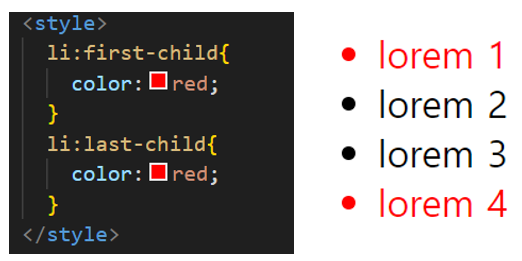
li 태그의 자식 요소 중에서 첫 번째와 마지막요소를 선택해 텍스트를 빨간색으로 적용한다.
-nth-child(n)과 :nth-last-child(n)
:nth-child(n) 선택자는 E 요소가 부모의 모든 자식 요소 중 n 번째 자식 요소가 맞으면 선택한다.
<!DOCTYPE html>
<html lang="ko">
<head>
  <meta charset="UTF-8">
  <meta http-equiv="X-UA-Compatible" content="IE=edge">
  <meta name="viewport" content="width=device-width, initial-scale=1.0">
  <title>nth-child(n)</title>
  <style>
    p:nth-child(1){
      color:red;
    }
  </style>
</head>
<body>
  <p>lorem 0</p> /* 부모인 body 태그의 첫 번째 자식 요소가 p 태그이므로 스타일 적용 */
  <div>
    <p>lorem 1</p> /* 부모인 div 태그의 첫 번째 자싱 요소가 p 태그이므로 스타일 적용 */
    <p>lorem 2</p>
  </div>
  <div>
    <p>lorem 3</p> /* 부모인 div 태그의 첫 번째 자싱 요소가 p 태그이므로 스타일 적용 */
    <p>lorem 4</p>
  </div>
</body>
</html>
위와 같이 선택자를 작성하면 부모 요소의 첫번째 자식 요소가 p 태그일때 선택된다.
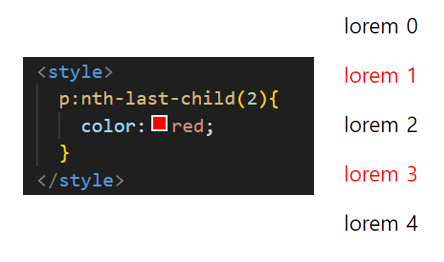
: nth-last-child(n) 선택자는 선택자를 찾는 기준이 부모 요소의 끝에서부터 라는 점을 제외하면 nth-chile(n)과 동일하다
<!DOCTYPE html>
<html lang="ko">
<head>
  <meta charset="UTF-8">
  <meta http-equiv="X-UA-Compatible" content="IE=edge">
  <meta name="viewport" content="width=device-width, initial-scale=1.0">
  <title>nth-last-child(n)</title>
  <style>
    p:nth-last-child(2){
      color:red;
    }
  </style>
</head>
<body>
  <p>lorem 0</p> /* 부모인 body 태그의 자식 중 끝에서 두 번째 요소가 아니므로 적용 안 됨 */
  <div>
    <p>lorem 1</p>/* 부모인 div 태그의 자식 중 끝에서 두 번째 요소가 p 태그이므로 스타일 적용 */
    <p>lorem 2</p>
  </div>
  <div>
    <p>lorem 3</p>/* 부모인 div 태그의 자식 중 끝에서 두 번째 요소가 p 태그이므로 스타일 적용 */
    <p>lorem 4</p>
  </div>
</body>
</html>
위의 코드를 실행하면 부모 요소에서 끝에서부터 두 번째 자식 요소가 p 태그일때 선택된다.
- :nth-of-type(n)과 :nth-last-of-type(n)
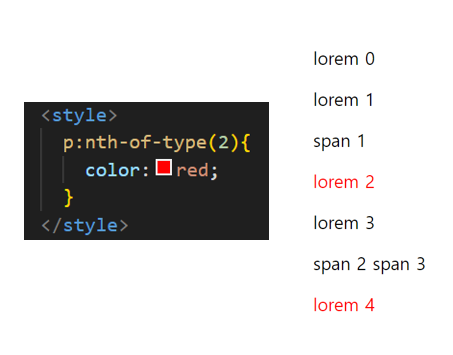
:nth-of-type(n) 선택자는 부모 요소의 자식 요소 중 n 번째로 등장하는 E 요소를 선택한다.
<!DOCTYPE html>
<html lang="ko">
<head>
  <meta charset="UTF-8">
  <meta http-equiv="X-UA-Compatible" content="IE=edge">
  <meta name="viewport" content="width=device-width, initial-scale=1.0">
  <title>nth-of-type(n)</title>
  <style>
    p:nth-of-type(2){
      color:red;
    }
  </style>
</head>
<body>
  <p>lorem 0</p>
  <div>
    <p>lorem 1</p>
    <span>span 1</span>
    <p>lorem 2</p> /* 부모인 div 태그의 자식 요소 중 두 번째 p 태그에 스타일 적용 */
  </div>
  <div>
    <p>lorem 3</p>
    <span>span 2</span>
    <span>span 3</span>
    <p>lorem 4</p> /* 부모인 div 태그의 자식 요소 중 두 번째 p 태그에 스타일 적용 */
  </div>
</body>
</html>
위와 같이 선택자를 작성하면 부모 요소의 자식 요소 중 두 번째로 등장하는 p 태그에 스타일을 적용한다.
:nth-last-of-type(n) 선택자도 부모 요소의 자식 요소 중 끝에서부터 찾는다는 점을 제외하면 nth-of-type(n)과 동일하다
<!DOCTYPE html>
<html lang="ko">
<head>
  <meta charset="UTF-8">
  <meta http-equiv="X-UA-Compatible" content="IE=edge">
  <meta name="viewport" content="width=device-width, initial-scale=1.0">
  <title>nth-last-of-type(n)</title>
  <style>
    p:nth-last-of-type(1){
      color:red;
    }
  </style>
</head>
<body>
  <p>lorem 0</p>
  <div>
    <p>lorem 1</p>
    <span>span 1</span>
    <p>lorem 2</p>
  </div>
  <div>
    <p>lorem 3</p>
    <span>span 2</span>
    <span>span 3</span>
    <p>lorem 4</p>
  </div>
</body>
</html>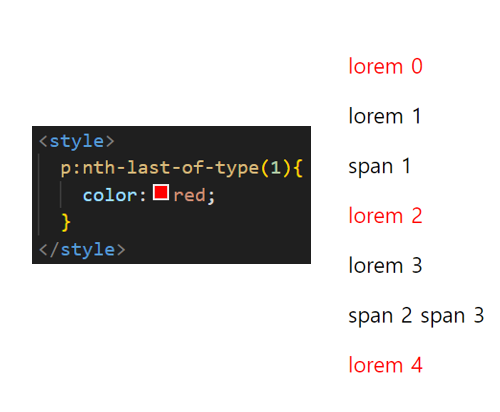
다음과 같이 결과물을 보면 부모 요소의 자식 요소 중 끝에서부터 첫 번째로 등장하는 p 태그를 선택하는걸 볼 수 있다
- :first-of-type과 :last-of-type
:first-of-type 선택자는 부모의 자식 중에서 첫 번째로 등장하는 E 요소를 선택하고,
last-of-type 선택자는 부모의 자식 중에서 마지막에 나오는 E 요소를 선택한다
<!DOCTYPE html>
<html lang="ko">
<head>
  <meta charset="UTF-8">
  <meta http-equiv="X-UA-Compatible" content="IE=edge">
  <meta name="viewport" content="width=device-width, initial-scale=1.0">
  <title>:first-of-type</title>
  <style>
    p:first-of-type{
      color:red;
    }
  </style>
</head>
<body>
  <span>span0</span>
  <p>lorem 0</p> /* 부모인 body 태그의 자식 중 첫번째 p 태그에 스타일 적용 */
  <div>
    <span>span1</span>
    <p>lorem 1</p> /* 부모인 div 태그의 자식 중 첫번째 p 태그에 스타일 적용 */
    <p>lorem 2</p>
  </div>
  <span>span2</span>
  <span>span3</span>
  <p>lorem 3</p>
  <p>lorem 4</p>
</body>
</html>
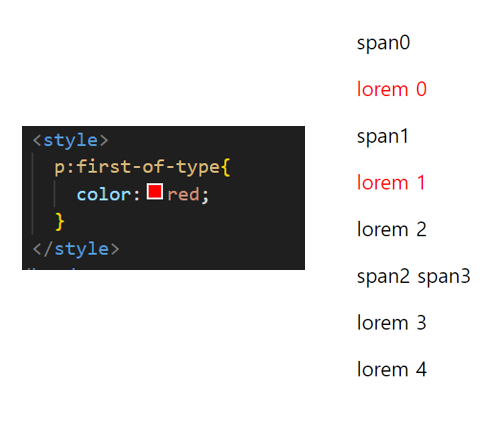
위의 작성된 코드를 보면 부모의 자식 요소 중 첫 번째로 등장하는 p 태그가 선택된것을 볼 수 있다.
: last-of-type 선택자
<!DOCTYPE html>
<html lang="ko">
<head>
  <meta charset="UTF-8">
  <meta http-equiv="X-UA-Compatible" content="IE=edge">
  <meta name="viewport" content="width=device-width, initial-scale=1.0">
  <title>:last-of-type</title>
  <style>
    p:last-of-type{
      color:red;
    }
  </style>
</head>
<body>
  <span>span0</span>
  <p>lorem 0</p>
  <div>
    <p>lorem 1</p>
    <p>lorem 2</p> /* 부모인 div 태그의 자식 중 마지막 p 태그에 스타일 적용 */
    <span>span1</span>
  </div>
  <span>span2</span>
  <p>lorem 3</p>
  <p>lorem 4</p> /* 부모인 div 태그의 자식 중 마지막 p 태그에 스타일 적용 */
  <span>span3</span>
</body>
</html>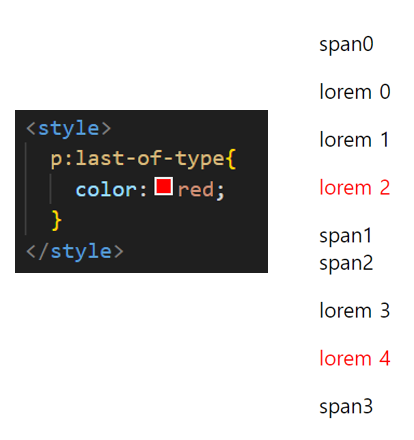
다음과 같이 작성하면 부모의 자식 요소 중 마지막에 나오는 p 태그를 선택한다
'CSS _HTML_JavaScript > CSS' 카테고리의 다른 글
| [CSS] CSS의 특징 살펴보기(기본 스타일 시트, 적용 우선순위와 개별성, 상속, 단위, 색상 표기법) (0) | 2023.07.25 |
|---|---|
| [CSS] CSS 마무리 정리 (0) | 2023.07.24 |
| [CSS] CSS 가상 요소 선택자 사용(::before, ::after) (0) | 2023.07.21 |
| [CSS] CSS 조합 선택자 사용 (0) | 2023.07.21 |
| [CSS] CSS 기본 선택자 사용 (0) | 2023.07.21 |


